


Last updated on November 1st, 2026 at 05:17 am
USB-C accessories include cables, chargers, adapters, hubs, headphones, and storage devices that connect through a USB Type-C port.
However, the same connector does not guarantee identical charging speeds, data transfer rates, or video capabilities. Understanding these differences helps you choose compatible accessories for your phone, tablet, or computer.
USB-C has simplified how people connect modern electronics, but it has also created a common source of confusion. Two cables can have the same connector and still offer different charging power, data speeds, and display capabilities.
The reason is simple: USB-C describes the physical connector, while technologies such as USB 2.0, USB 3.2, USB4, and USB Power Delivery define different capabilities that may be supported through that connection.
The USB Implementers Forum’s official documentation makes this distinction clear: USB-C, USB data protocols, and USB Power Delivery are related but separate specifications.
This matters when connecting a phone to external storage, charging a laptop, adding a monitor through a hub, or using wired headphones. An accessory may fit the port perfectly but still lack the feature you need.
Understanding USB-C accessories starts with looking beyond the connector. The device, cable, charger, and accessory must support the intended function for the connection to work as expected.
Once you understand those differences, it becomes easier to troubleshoot problems and make better use of the devices you already own.
Types of USB-C Accessories and What They Do
USB-C accessories serve several purposes, from charging everyday devices to connecting external displays, storage drives, and wired peripherals. Although they share the same connector family, their capabilities can differ significantly.
The most useful way to understand these accessories is to look at what each one does, which features it supports, and what your device needs to use it properly.
USB-C Cables for Charging and Data Transfer
The USB Implementers Forum’s official USB-C cable and connector documentation explains the differences between USB-C cables and their supported capabilities. Cable specifications should be verified rather than inferred from the connector’s appearance.
However, not all USB-C cables offer the same performance.
Some cables support USB 2.0 data speeds of up to 480 Mbps, while others support faster USB protocols. Certain cables also support advanced capabilities such as USB4 or Thunderbolt, provided the connected devices support them.
The USB Implementers Forum explains these differences in its official USB-C cable and connector documentation. Cable capabilities should be verified rather than inferred from the connector’s appearance.
Consider three everyday situations:
- Charging a phone: A cable with an appropriate power rating may be sufficient even if it offers basic data transfer.
- Transferring large video files: A cable supporting higher data rates may reduce transfer times when the computer and storage device support the same speeds.
- Connecting a monitor: The cable must support the required video functionality, and the host device must provide compatible display output.
Before selecting a cable, check its supported data rate, power rating, length, and compatibility with your devices. A cable that works for charging may not be suitable for every high-speed data or display application.
USB-C Chargers and Power Adapters
USB-C chargers supply electrical power to compatible devices, including phones, tablets, laptops, headphones, and portable accessories.
One important technology is USB Power Delivery, commonly abbreviated as USB PD. It allows compatible power sources and devices to negotiate supported voltage and current levels.
USB Power Delivery is separate from the USB-C connector specification. A device can have a USB-C port without supporting every USB PD feature.
The USB Implementers Forum’s USB Power Delivery documentation explains how this technology supports power negotiation between compatible devices. Actual charging capability depends on the charger, receiving device, cable, and supported power profiles.
For example, a laptop designed for a 65-watt power supply may charge more slowly when connected to an adapter that provides less power than the laptop requires, especially during demanding workloads.
A higher-wattage charger does not automatically make every connected device charge faster. The device determines how much power it can accept under the supported charging conditions.
When choosing a USB-C power adapter, consider:
- The device’s recommended charging power.
- Whether the charger supports the required charging protocol.
- Whether the cable supports the intended power level.
- How the charger distributes power across multiple ports.
- Whether the adapter comes from a reputable manufacturer and has appropriate safety certifications.
These details matter particularly when using one charger for a laptop, phone, and tablet.
USB-C Hubs and Docking Stations
USB-C hubs and docking stations expand the connectivity of devices with a limited number of ports.
A hub typically adds several connections through one host port. A docking station may provide a more extensive desktop setup, potentially including display outputs, networking, peripheral connections, and laptop charging.
Depending on the model, these accessories may include:
- USB-A ports for keyboards, mice, and older peripherals.
- Additional USB-C ports.
- HDMI or DisplayPort connections.
- Ethernet ports for wired networking.
- SD or microSD card readers.
- USB Power Delivery pass-through for charging a compatible laptop.
Imagine a laptop with only two USB-C ports. A compatible hub could let you connect an external drive, keyboard, mouse, and monitor without repeatedly disconnecting individual devices.
However, a hub does not automatically add capabilities that the laptop lacks. If the computer cannot output video through its USB-C port, a conventional hub cannot necessarily overcome that limitation.
Bandwidth is another consideration. Multiple connected devices may share the hub’s available data bandwidth, depending on its internal design and the host connection.
Before choosing a hub, verify the host device’s capabilities, the functions of the hub’s individual ports, its display specifications, and its power-delivery requirements.

USB-C to HDMI and Display Adapters
USB-C display adapters connect compatible computers, tablets, and phones to external monitors, televisions, and projectors.
A USB-C to HDMI adapter can be useful for presentations, extending a laptop’s desktop, or displaying supported content on a larger screen.
The critical requirement is that the source device must support video output through its USB-C connection. The adapter must also support the relevant video interface and the resolution and refresh rate you intend to use.
For example, a monitor may support 4K resolution at a particular refresh rate, but the complete connection may not deliver that combination if the computer, adapter, or cable has lower capabilities.
Microsoft’s documentation on USB Type-C connectors in Windows explains that connections can support alternate modes, including DisplayPort, when the relevant hardware implements them.
Before connecting a display, check:
- Whether the host device supports video output.
- Whether the adapter supports HDMI or DisplayPort as required.
- The supported resolution and refresh rate.
- Whether the connection requires additional power.
- Whether the operating system supports the intended display configuration.
A USB-C connector alone is not proof that a device can connect directly to an external monitor.
USB-C Headphones and Audio Adapters
USB-C headphones provide a wired audio connection through a compatible USB-C port. They can be useful on phones and laptops that lack a traditional 3.5 mm headphone jack.
USB-C to 3.5 mm adapters provide another option for users who want to continue using conventional wired headphones.
Audio compatibility depends on the implementation of the headphones, adapter, and host device. Some adapters incorporate digital-to-analog conversion hardware, while others depend on the capabilities of the connected equipment.
If headphones are not recognized, check that the accessory supports the device’s audio connection requirements. If an adapter is involved, verify that it is designed for the intended device and audio function.
USB-C audio also differs from Bluetooth audio. USB-C headphones use a physical connection, while Bluetooth headphones communicate wirelessly and generally need their own battery or charging arrangement.
The best choice depends on the device’s available ports, the headphones you already own, and whether you prefer a wired or wireless connection.
USB-C External Storage and Card Readers
USB-C external SSDs, flash drives, and memory card readers provide additional storage and help transfer files between compatible devices.
These accessories are useful for moving photographs, backing up documents, transferring video footage, and accessing files without relying entirely on cloud storage.
However, the USB-C connector does not determine the storage device’s actual performance. Transfer speeds depend on the drive, its supported USB protocol, the cable, the host port, and the type of data being transferred.
For instance, connecting a high-speed external SSD through a cable limited to a slower data protocol can reduce the performance of the overall connection.
Compatibility also involves software. A phone or tablet may support USB-C but have restrictions related to external storage, file systems, available power, or file-management applications.
For reliable results, check the storage device’s interface, the cable’s data capabilities, and the host device’s support for external drives or memory cards.
USB-C to Ethernet Adapters
USB-C to Ethernet adapters provide a wired network connection for compatible laptops, tablets, and other devices.
They are useful when a device lacks an Ethernet port or when a user needs to connect to a wired network in an office, hotel, classroom, or home workspace.
A wired connection can provide a more consistent network experience in environments where wireless interference or signal strength is a concern. However, actual internet performance still depends on the network, router, service plan, and connected hardware.
When selecting an Ethernet adapter, check its supported network speed, operating-system compatibility, and whether it requires additional power or drivers.
The adapter also needs to match the capabilities of the network connection. A faster Ethernet adapter cannot make a slower router or internet service deliver speeds beyond its own limits.
USB-C Card Readers and Other Peripherals
Beyond storage drives and network adapters, USB-C accessories include card readers, microphones, audio interfaces, and other specialized peripherals.
A card reader can transfer photos from a camera’s memory card to a laptop or compatible tablet. A USB-C microphone can provide a direct wired audio input for supported recording applications. Other peripherals may offer specialized functions that depend on the device’s operating system and software.
Before connecting one of these accessories, confirm that the host device supports the required peripheral class or application. Some accessories work immediately, while others require drivers, permissions, dedicated software, or additional power.
The same principle applies throughout the USB-C ecosystem: physical connection is only the first requirement. The device, accessory, cable, and software must support the intended function.
USB-C Accessories: Understanding Compatibility
USB-C compatibility depends on more than whether a cable or accessory fits into a port. The device, cable, charger, and accessory must support the functions you want to use, whether that means charging, transferring files, connecting a monitor, or using external storage.
This explains why a USB-C accessory may work perfectly with one laptop but offer limited functionality with another. The connector can be identical even when the underlying hardware supports different data speeds, power levels, or display features.
USB-C Connector vs. USB Protocol: What Is the Difference?
USB-C describes the physical connector and its associated connection system. USB 2.0, USB 3.2, and USB4 describe data-transfer technologies that can be implemented through compatible USB-C connections.
USB Power Delivery is a separate specification for negotiating power between compatible devices. It should not be confused with USB data-transfer speeds.
The USB Implementers Forum’s USB4 documentation explains how USB4 builds on earlier USB architectures and supports high-bandwidth data and display protocols. Actual performance depends on the capabilities shared by the connected equipment.
For example, a USB-C cable limited to USB 2.0 data operation cannot provide USB 3.2 or USB4 signaling simply because it is connected to a USB4 port. The connection is limited by the capabilities of its components.
This distinction matters when selecting USB-C accessories for external SSDs, docking stations, and other equipment that depends on high-speed data transfer.
USB-C Compatibility for Charging, Data, and Video
Different functions have different compatibility requirements. A device might support charging through USB-C without supporting high-speed data transfer or video output through the same port.
| Function | What must be compatible | Common limitation |
|---|---|---|
| Charging | Device, charger, cable, and supported charging protocol | Charging may be slower than expected |
| Data transfer | Host port, accessory, cable, and supported USB protocol | File transfers may use a slower connection |
| External display | Host video output, cable or adapter, and display | Monitor receives no signal or supports limited modes |
| Audio | Device, headphones or adapter, and audio implementation | Headphones may not be recognized |
| External storage | Device, storage accessory, cable, and software support | Drive may not appear or may have limited functionality |
| Docking station | Host port, dock, cables, power supply, and supported features | Some ports or displays may not work |
These limitations do not automatically mean the accessory is defective. They can result from differences in supported features across the connection.
Why a USB-C Cable Can Limit Performance
A cable is an active part of the connection, not simply a passive link between two devices. Its supported data rate, power rating, and signal capabilities can determine which functions are available.
Consider a laptop and an external SSD that both support high-speed USB data transfer. If the connecting cable supports only USB 2.0 data operation, the drive cannot reach its higher supported transfer rate through that connection.
The same principle applies to charging. A cable that does not support the power requirements of a particular charging configuration may prevent the devices from reaching their intended charging performance.
The USB-IF’s USB-C product and packaging guidelines distinguish products by supported performance capabilities. When checking a cable, look for explicit data-speed and power specifications instead of relying on the USB-C connector shape.
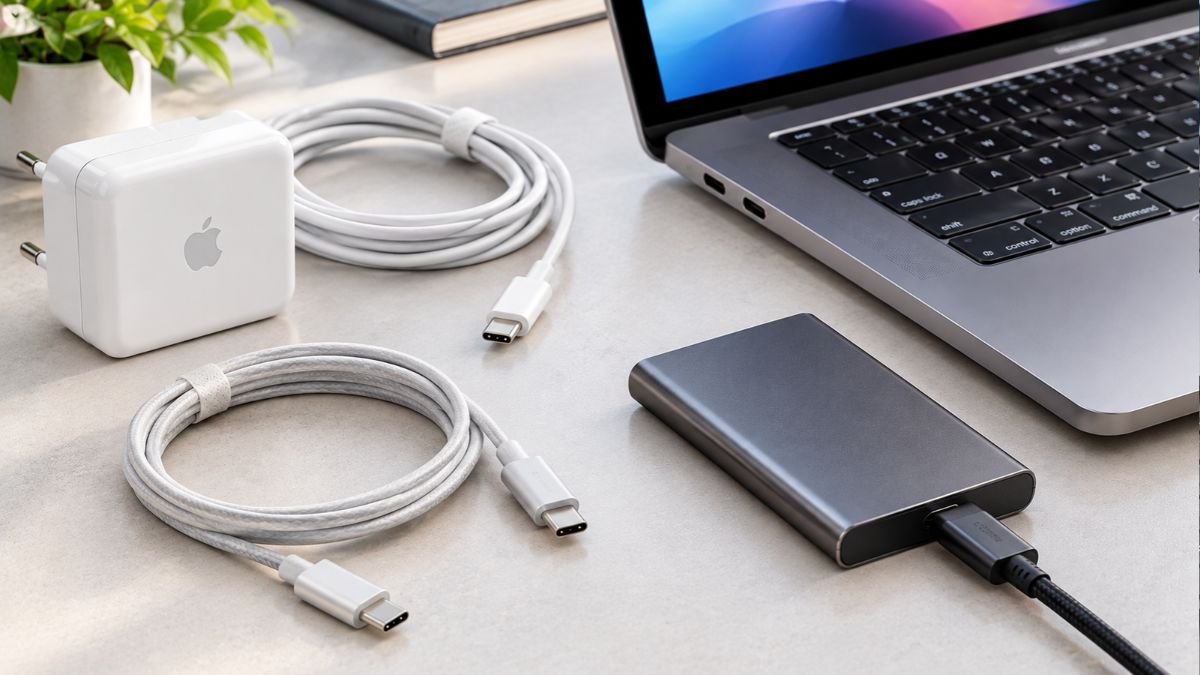
Why USB-C Ports on the Same Device May Have Different Capabilities
Some laptops and other devices have multiple USB-C ports that support different features. One port might support charging and data transfer, while another may also support video output or Thunderbolt connectivity.
The port’s location and connector shape are not enough to determine its capabilities. Manufacturers may identify supported functions through symbols, labels, technical specifications, or the device manual.
Microsoft’s official guide to fixing USB-C problems in Windows specifically recommends checking whether the computer supports the same USB-C features as the connected accessory and cable.
Before buying a hub or docking station, verify which laptop port supports the required connection. Connecting an advanced dock to a port that lacks a necessary feature may result in limited functionality.
USB-C Compatibility Across Phones, Tablets, and Laptops
USB-C accessories can work across different device categories, but compatibility still depends on each device’s implementation.
For example, Apple’s official guide to charging and connecting accessories through an iPhone’s USB-C connector describes connections to compatible external storage, displays, microphones, Ethernet adapters, and other devices. Available features depend on the iPhone model and the accessory being used.
A USB-C accessory that works with a laptop may therefore offer different functionality when connected to a phone or tablet.
Before relying on cross-device compatibility, check:
- Whether the device supports the required USB-C function.
- Whether the accessory works with its operating system.
- Whether the cable supports the required data or power capability.
- Whether additional software, permissions, or power are necessary.
These checks are particularly useful when sharing accessories among work computers, personal phones, and tablets.
USB-C Charging, Power Delivery, and Safety
USB-C charging supports a wide range of devices, from wireless earbuds and smartphones to tablets and laptops. However, using a USB-C charger does not guarantee the fastest possible charging speed. The charger, cable, device, and supported charging protocol must work together.
USB Power Delivery (USB PD) helps compatible devices negotiate suitable power levels. According to the USB Implementers Forum’s official USB Power Delivery documentation, the USB PD 3.1 specification supports power delivery up to 240 watts with compatible equipment. This is the maximum supported by that specification, not the power level available from every USB-C charger or cable.
How Wattage Affects USB-C Charging
Wattage measures electrical power. A charger rated at 65 watts can supply up to its supported output under the specified operating conditions, but a connected device draws power according to its own capabilities and charging requirements.
For example, a laptop designed for a 65-watt USB-C power adapter may charge more slowly with a lower-power charger. If the laptop is running demanding applications at the same time, the available power may not be enough to charge the battery quickly or maintain its charge.
A smartphone designed for a lower charging power will not automatically charge faster when connected to a much higher-wattage adapter. The phone’s charging system determines how much power it can accept.
Three factors are especially important:
- Charger output: The adapter must provide a power level supported by the device.
- Cable capability: The cable must support the power requirements of the charging configuration.
- Device limits: The receiving device determines the charging power it can use under current conditions.
Battery charge level, temperature, and simultaneous device use can also affect charging speed.
What USB Power Delivery Actually Does
USB Power Delivery is a power-negotiation protocol that allows compatible power sources and devices to agree on supported voltage and current levels.
This flexibility allows one type of charging technology to serve different classes of electronics. A compatible charger may supply power to a phone, tablet, or laptop, but the actual output depends on the supported power profiles and the connected equipment.
USB-C and USB Power Delivery are not interchangeable terms. A USB-C port or cable does not necessarily support every USB PD capability.
Some high-power USB PD configurations also require appropriately rated cables. The cable’s specifications should therefore be checked alongside the charger’s advertised wattage.
Why a Higher-Wattage Charger May Not Charge Faster
A higher-wattage charger can provide more available power, but it cannot force a device to accept power beyond its supported limits.
For example, connecting a 100-watt USB-C charger to a phone designed for a lower charging rate does not mean the phone will receive 100 watts. The phone uses a compatible charging arrangement and draws only the power it can accept.
The opposite situation can also occur. A laptop that requires more power than a charger can provide may display a slow-charging warning or lose battery charge while in use.
Microsoft’s guidance on PCs charging slowly or discharging while plugged in identifies insufficient charger output, incompatible equipment, and cable limitations as possible causes.
Before replacing a charger, check the laptop manufacturer’s recommended power rating and confirm that the cable and USB-C port support the required charging arrangement.
Using One USB-C Charger for Multiple Devices
A multiport USB-C charger can reduce the number of adapters needed for everyday electronics. However, its total advertised wattage does not always describe the power available from each port when several devices are connected.
Some chargers redistribute their available output when another device is plugged in. A port that supplies a higher power level when used alone may provide less power during simultaneous charging.
Consider a travel setup with a laptop and smartphone connected to the same charger. The charger may support both devices, but the available power distribution depends on its design and the connected devices’ requirements.
Before relying on a multiport charger, check its individual port ratings and simultaneous-output specifications. If a laptop charges slowly when another device is connected, the charger’s power distribution may be a factor.
USB-C Charging Safety and Cable Quality
USB-C accessories should have clear specifications and be suitable for the intended device and charging conditions. Poorly made, damaged, or incorrectly rated accessories can create reliability and safety problems.
Follow these practical precautions:
- Use chargers and cables from reputable manufacturers with clearly stated specifications.
- Check that the cable supports the intended charging power.
- Stop using cables with exposed conductors, damaged insulation, or loose connectors.
- Keep ports and connectors dry and free from debris.
- Avoid forcing a connector into a port.
- Follow the device manufacturer’s instructions when choosing replacement chargers.
Do not assume that a cable is suitable for high-power charging simply because it fits the connector. The correct power rating and supported charging protocol matter.
Troubleshooting Slow USB-C Charging
If a device charges more slowly than expected, check the entire connection before buying replacement accessories.
- Confirm that the charger meets the device manufacturer’s power requirements.
- Verify that the cable supports the required charging power.
- Connect the charger directly to the device’s supported charging port, bypassing a hub if possible.
- Check whether other devices connected to a multiport charger are reducing the available output.
- Inspect the cable and ports for visible damage, dirt, or a loose connection.
- Consult the manufacturer’s troubleshooting instructions if the problem continues.
These checks help distinguish an underpowered charger from a cable limitation, an incompatible port, or a device-related issue.
Common Problems With USB-C Accessories and How to Fix Them
USB-C accessories do not always work as expected, even when the connector fits correctly. In many cases, the cause is a limitation in the cable, port, accessory, or device rather than a hardware failure.
Understanding the symptoms can help you identify the likely cause before replacing equipment.
A USB-C Cable Charges a Device but Transfers Files Slowly
A cable may charge a device normally while limiting data-transfer speeds. This can happen when its supported data protocol is slower than the capabilities of the connected computer or storage device.
What to check: Verify the cable’s data-transfer specification and confirm that both connected devices support the intended USB protocol. If necessary, test with a compatible cable rated for the required speed.
A USB-C Hub Does Not Connect a Monitor
A hub with an HDMI or DisplayPort connector cannot guarantee video output from every USB-C device. The host device must support a compatible video-output method, and the hub must support the required display configuration.
A laptop may also support external displays through one USB-C port but not another.
What to check: Consult the device specifications, confirm which port supports video output, and verify the hub’s supported resolution and refresh rate. If possible, test the display connection without the hub to help isolate the problem.
A Laptop Displays a Slow-Charging Warning
A laptop may charge slowly when the charger cannot provide enough power for the device’s requirements. A cable limitation or a hub that reduces the available power can also affect charging performance.
What to check: Compare the charger’s output with the laptop manufacturer’s requirements. Verify the cable’s power rating and, if you use a hub or docking station, test the charger directly with the laptop.
This helps identify whether the problem comes from insufficient power, the cable, or the connection setup.
USB-C Headphones Are Not Recognized
USB-C headphones and audio adapters depend on compatible audio hardware and software. A connector that fits does not guarantee that every audio accessory will work with every device.
An adapter designed for one audio implementation may not support another.
What to check: Confirm compatibility with the device, disconnect and reconnect the accessory, check the selected audio output, and test another supported port or accessory if available.
An External USB-C Drive Does Not Appear
An external SSD, flash drive, or card reader may fail to appear because of an unsupported file system, insufficient power, a faulty cable, an incompatible accessory, or a software limitation.
A phone or tablet may also require a compatible file-management application or permission before the files become accessible.
What to check: Confirm that the device supports external storage, reconnect the drive using a suitable cable, and inspect the operating system’s storage or device settings. Avoid formatting the drive unless you understand that doing so may erase its contents.
A USB-C Accessory Disconnects Intermittently
Intermittent connections can result from a damaged cable, loose connector, dirty port, insufficient power, or a problem with the accessory itself.
If the connection drops when a cable moves, stop using it if there is visible damage or a loose connector.
What to check: Try another compatible cable or port, remove unnecessary adapters, and inspect the connectors without inserting metal objects or other tools into the port. If the problem persists across several known-compatible connections, the device or accessory may need further diagnosis.
How USB-C Accessories Fit Into Everyday Technology
USB-C accessories are useful across different types of consumer electronics, but the available functions depend on each device’s hardware and software. Understanding these differences helps users build practical setups without assuming that every accessory works identically across phones, tablets, and laptops.
Using USB-C Accessories With Smartphones
Smartphones can use compatible USB-C charging cables, wired headphones, external storage, card readers, and certain display or networking adapters.
For example, Apple’s official guide to connecting USB-C accessories to compatible iPhones describes connections involving external storage, displays, microphones, and other peripherals. The available features depend on the iPhone model and the accessory being used.
A USB-C phone may support fast charging and data transfer without supporting every external display function. Similarly, an accessory that works on a laptop may require different software or may not be supported on a phone.
For more context on related connections, see the Smart Gadget Wave guide to smartphone accessories.
Using USB-C Accessories With Tablets and Laptops
Tablets and laptops can use USB-C accessories to expand storage, connect peripherals, attach displays, and simplify charging.
Consider a laptop with limited built-in ports. A compatible docking station can provide connections for a monitor, keyboard, mouse, Ethernet cable, and external storage. Depending on the dock and laptop, it may also supply power through the same connection.
However, not every laptop supports every dock feature. Some connections may require DisplayPort support, Thunderbolt compatibility, or a particular USB data capability.
Tablets may support external storage and displays but have different software restrictions from laptops. Check the manufacturer’s documentation before relying on a particular accessory for work or presentations.
Using USB-C Accessories While Traveling
USB-C accessories can reduce the number of separate connections needed while traveling. A compatible charger may power several types of personal electronics, while a suitable power bank can provide charging away from a wall outlet.
A compact hub can also help connect a laptop to external peripherals in a hotel or shared workspace. However, a hub that supports several ports may still have limits on display output, bandwidth, or simultaneous power delivery.
When packing for a trip, consider which devices need charging, whether you will connect external displays or storage, and whether your accessories support the relevant functions.
The Smart Gadget Wave guides to portable chargers and power bank technology cover related charging concepts.
How to Check USB-C Accessory Compatibility Before Connecting
Before relying on a USB-C accessory, verify that it supports the function you need. This is particularly important when connecting high-speed storage, external displays, docking stations, or laptop chargers.
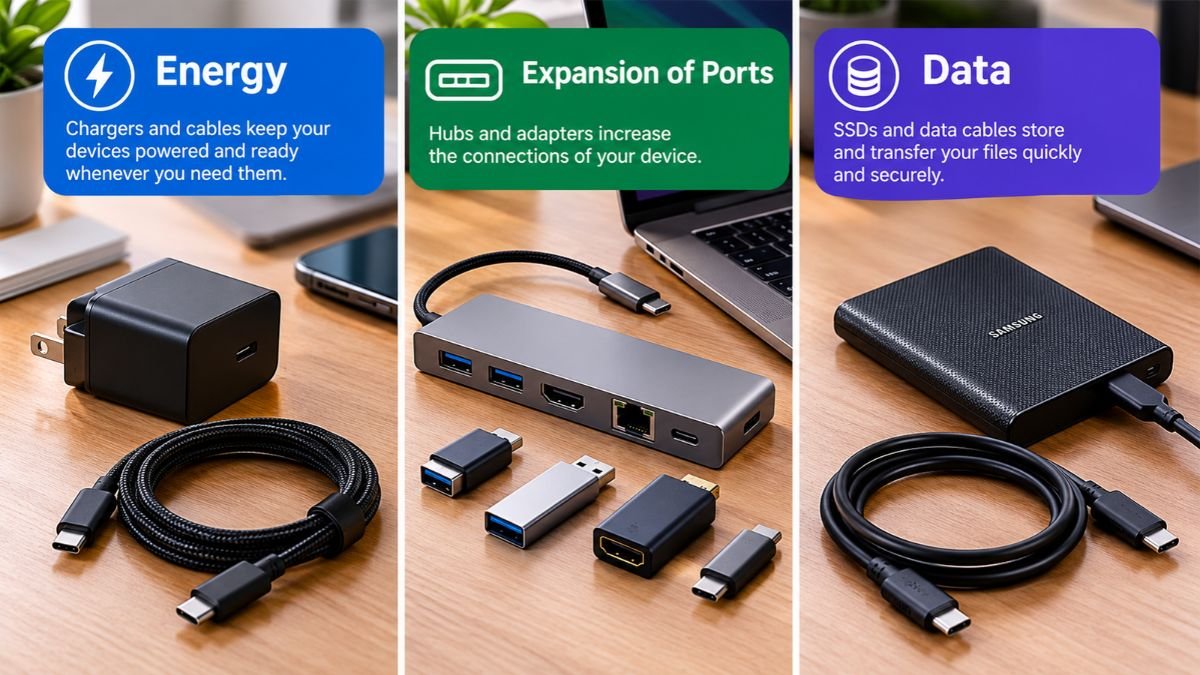
Use the following checklist.
- Identify the device’s capabilities. Check the manufacturer’s specifications for charging, data transfer, video output, and peripheral support.
- Review the accessory’s requirements. Confirm the supported USB protocol, power rating, display features, and operating-system compatibility.
- Verify the cable. Make sure it supports the required power level and data rate. If video is involved, confirm the cable’s supported display functionality.
- Check power distribution. For a hub or multiport charger, review how much power each port can provide when several devices are connected.
- Confirm software support. Some accessories require drivers, permissions, compatible applications, or particular operating-system versions.
- Test the intended function. Check that charging, file transfers, audio, networking, or display output works as expected.
If a feature does not work, isolate the connection by testing one compatible component at a time. For example, connect a display directly to a supported video-output port before adding a hub. This can help identify whether the limitation comes from the hub, cable, or host device.
The key is to verify the complete connection rather than assuming that the USB-C connector alone guarantees compatibility.
Conclusion
USB-C accessories make modern devices more versatile by supporting charging, data transfer, audio, video, storage, and additional connectivity through a compact, reversible connector. However, the connector alone does not guarantee that every feature will work across different devices.
Understanding USB-C protocols, cable capabilities, power requirements, and display support helps you identify compatible accessories and troubleshoot common problems.
These details matter whether you are connecting a smartphone to external storage, charging a laptop, or expanding a workstation with a docking station.
The most reliable approach is to check the specifications of the device, cable, charger, and accessory before connecting them. This helps prevent unnecessary replacements and makes it easier to use existing equipment effectively.
As USB-C continues to connect more types of consumer electronics, understanding its capabilities is a practical skill for everyday technology users.
If you have encountered a compatibility issue with a USB-C accessory, consider sharing the device and accessory involved so other readers can learn from your experience.
Frequently Asked Questions About USB-C Accessories
What are USB-C accessories used for?
USB-C accessories support charging, data transfer, audio, video, networking, and external storage. Common examples include cables, chargers, hubs, docking stations, headphones, and adapters. Their available functions depend on the specifications of the connected devices and accessories, so a matching USB-C connector does not guarantee that every feature will work.
Are USB-C accessories compatible with all phones and laptops?
No, USB-C accessories are not universally compatible with every device or function. A cable may charge a phone but provide slower data transfer, while a hub may require video-output support that a laptop lacks. Check the manufacturer’s specifications for the device, accessory, and cable before relying on a particular feature.
Do USB-C accessories support fast charging?
Some USB-C accessories support fast charging through compatible charging technologies such as USB Power Delivery. Actual charging speed depends on the device’s supported charging protocol, the charger’s available output, and the cable’s capabilities. A higher-wattage charger will not necessarily make a device charge faster if the device cannot accept the additional power.
Can USB-C accessories connect a phone to an external monitor?
Yes, compatible USB-C accessories can connect supported phones to external monitors through suitable cables or adapters. However, the phone must support video output through its USB-C connection, and the adapter and display must support the intended configuration. Some phones support USB-C charging and data transfer without offering wired video output.
Why do USB-C accessories transfer files at different speeds?
USB-C accessories can support different USB data protocols and transfer rates. A cable limited to USB 2.0 data speeds may restrict transfers even when the connected computer and external drive support faster technologies. The host port, accessory, cable, and storage device all influence the speed of the complete connection.
Can one USB-C charger power multiple devices?
Yes, a compatible multiport USB-C charger can power several devices, provided its total output and individual port capabilities meet their requirements. The available power may be redistributed when multiple devices are connected, potentially slowing charging for one or more devices. Check the charger’s specifications for simultaneous output rather than relying only on its maximum advertised wattage.
How can I tell whether a USB-C accessory is safe to use?
Check the accessory’s specifications, manufacturer information, and relevant safety certifications. Use an appropriate charger and cable, avoid damaged connectors or exposed wiring, and keep connections dry. If a cable becomes damaged or a connector behaves abnormally, stop using it. A USB-C connector by itself does not establish the quality or safety of an accessory.

I’m a Technology Editor at SmartGadgetWave with a passion for innovation, AI, and consumer technology. I enjoy exploring the latest gadgets, smart home devices, and wearable tech. My goal is to make technology easy to understand by sharing practical insights, honest perspectives, and helpful product comparisons so readers can make smarter tech decisions.


