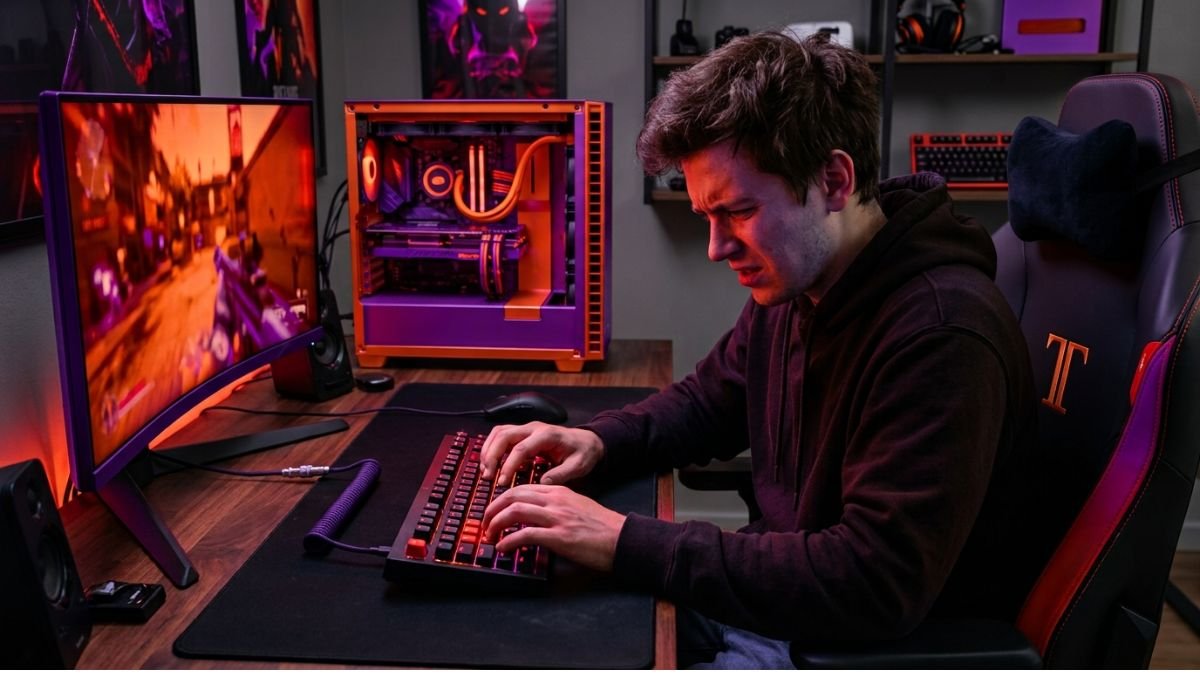
Gaming keyboard mistakes often come from incorrect Windows layouts, unnecessary software changes, poor USB or wireless connections, outdated drivers, or misunderstood keyboard features. Many problems that look like hardware failures are actually configuration issues.
Checking the connection, Windows settings, and keyboard software first can prevent unnecessary resets, replacements, and troubleshooting headaches.
A new gaming keyboard can seem simple: plug it in, open a game, and start playing. But the moment keys produce unexpected characters, a wireless connection drops, or a customization program changes the way a key behaves, beginners can quickly assume something is wrong with the hardware.
That assumption is often premature.
Gaming keyboard mistakes are frequently related to the way the keyboard is connected, configured, or interpreted by Windows.
Microsoft, for example, documents separate keyboard layouts and explains that changing the input layout changes how keystrokes are interpreted without changing the physical keyboard itself.
Connection problems can also have surprisingly simple causes. Microsoft’s current troubleshooting guidance recommends checking cables, trying another USB port, removing unsupported hubs, checking wireless connections, and testing the device on another computer before concluding that the hardware has failed.
The goal, then, is not to memorize every possible keyboard failure. It is to learn a better troubleshooting habit: change one variable at a time, start with the simplest explanation, and understand what the keyboard software is actually doing.
1. Treating Every Keyboard Problem as a Hardware Failure
One of the most common beginner mistakes is assuming that a strange keyboard behavior automatically means the keyboard itself is defective.
A gaming keyboard is part of a larger system. The physical switches, USB connection or wireless receiver, operating system, keyboard layout, firmware, configuration software, and individual application can all affect what happens when a key is pressed.
For example, if a keyboard works normally in one application but produces unexpected behavior in another, the problem may be software-specific rather than a physical keyboard failure.
Microsoft’s troubleshooting guidance specifically recommends testing keys in other programs when incorrect behavior appears limited to a particular application.
A simple way to separate the possibilities
Think of a keyboard problem in four layers:
| Layer | Possible problem | Typical symptom |
|---|---|---|
| Physical connection | USB cable, port, receiver, power | Keyboard not detected |
| Windows | Keyboard layout or accessibility setting | Wrong characters or unexpected behavior |
| Keyboard software | Profiles, macros, remapping | Keys perform unusual actions |
| Hardware | Switch, cable, internal electronics | Persistent failure across computers |
This distinction matters because troubleshooting the wrong layer can create additional problems.
If a keyboard is typing the wrong letters, replacing the keyboard immediately makes little sense if Windows is simply using the wrong input layout.
If a wired keyboard does not turn on, on the other hand, checking the USB connection is a much more logical first step.
2. Changing Too Many Keyboard Settings at Once
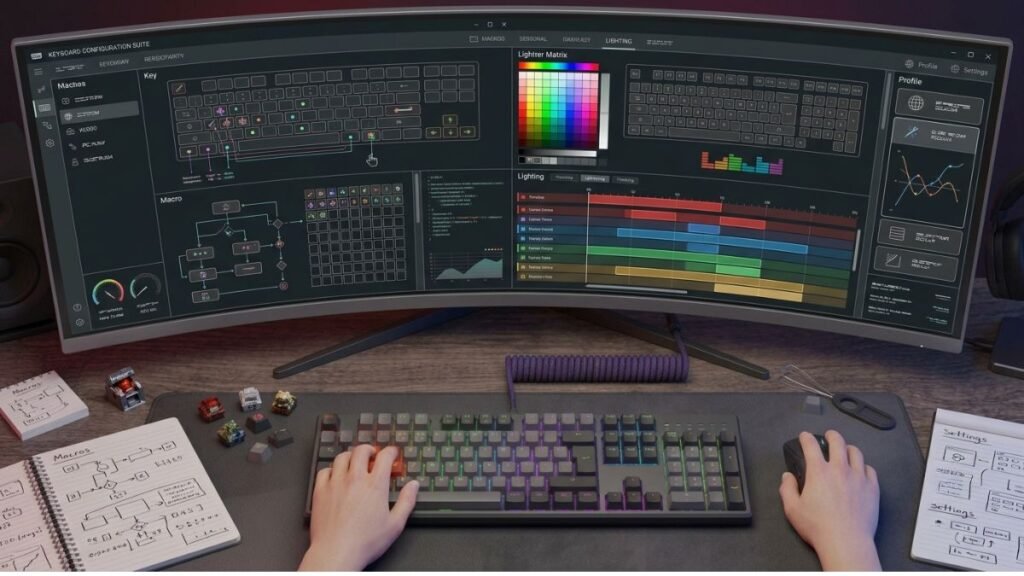
Gaming keyboards often come with software that allows users to customize lighting, macros, key assignments, profiles, game modes, and other functions.
That flexibility is useful, but it creates an easy troubleshooting trap: changing several settings at the same time.
It’s easy to change a key assignment, switch profiles, update the keyboard software, and adjust a Windows setting all at once. But if something suddenly stops working as expected, figuring out which change caused the problem becomes much harder.
Change one variable at a time
A better approach is:
- Identify the exact symptom.
- Test whether it happens everywhere or only in one application.
- Change one setting.
- Test again.
- Record what changed if the problem persists.
This is essentially basic troubleshooting discipline.
It is especially useful with programmable keyboards because a single profile can alter multiple keys simultaneously.
Why keyboard profiles can be confusing
Some gaming keyboards support multiple profiles. A profile may contain different key assignments, macros, lighting settings, or game-specific behavior.
This can make it seem like the keyboard has changed its behavior on its own, when in reality a different profile may have been activated. Before reinstalling software or resetting anything, check which profile is currently active and whether it changed any key assignments or settings.
3. Installing Keyboard Software Without Understanding What It Changes
Another common mistake is installing every utility offered by the manufacturer without knowing what each application controls.
Keyboard software can be useful for customization, but beginners should understand the difference between:
- Basic keyboard operation
- Device configuration
- Macro programming
- Lighting control
- Firmware updates
- Profile management
A keyboard does not necessarily need every available software feature to function normally.
When keyboard software becomes part of the problem
A useful diagnostic question is:
Did the keyboard work correctly before the software was installed or changed?
If the answer is yes, temporarily returning the configuration to its previous state can help identify whether software is involved.
Keyboard software isn’t the problem by itself. In fact, you may need it for features like macros, custom key assignments, or lighting profiles. Problems usually start when several settings are changed without keeping track of what each one actually does.
4. Assuming Wrong Letters Mean the Keyboard Is Broken
This is one of the most important beginner mistakes because the physical keyboard can be completely functional while Windows interprets the keys differently.
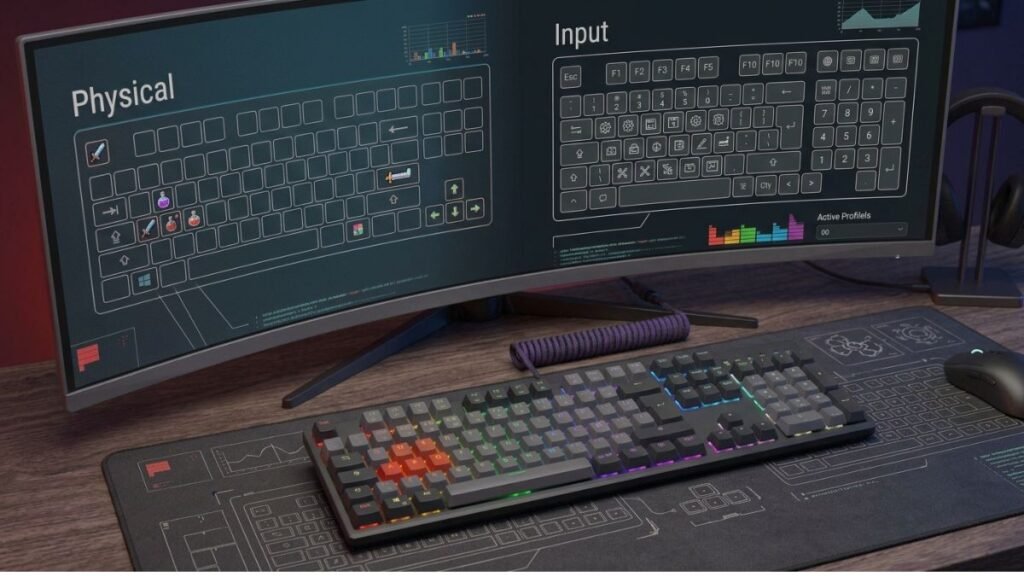
Windows supports multiple keyboard input layouts. Microsoft explains that users can add, remove, and switch between layouts, and that changing the layout changes how keyboard input is interpreted.
For example, someone may press a key expecting one character and receive another because Windows is using a different layout from the one printed on the keyboard.
What to check first
On Windows, look at the input-language indicator in the taskbar.
You can also cycle through installed keyboard layouts using Windows key + Space. Microsoft documents this shortcut as a way to switch between installed input layouts.
If the problem disappears after selecting the correct layout, the keyboard itself was never the real problem.
Mechanical keyboard typing wrong keys
The same principle applies when a mechanical keyboard appears to be typing wrong letters.
The word “mechanical” describes the keyboard’s physical switch technology. It does not mean the keyboard controls the character mapping independently of the operating system.
If the physical keys register but Windows interprets them differently, the problem may be the input configuration rather than the switches.
5. Ignoring the USB Connection
A wired gaming keyboard should not be assumed to have a reliable connection simply because its cable is plugged in.
USB ports, hubs, extension devices, and cables can all become part of the troubleshooting process.
Microsoft recommends disconnecting and reconnecting USB devices, trying a different USB port, removing an intermediate USB hub when appropriate, and checking the cable for visible damage.
Why a USB hub can complicate troubleshooting
A USB hub introduces another device between the keyboard and computer.
That does not automatically mean a hub is bad. The problem is diagnostic clarity.
If the keyboard works when connected directly to the computer but fails through a hub, you have immediately narrowed down the possible causes.
For a beginner, that is much more useful than changing keyboard drivers at random.
6. Forgetting That Wireless Keyboards Have More Variables
Wireless gaming keyboards introduce additional components that wired keyboards do not have.
Depending on the model, the connection may involve:
- Battery or rechargeable power
- A 2.4GHz USB receiver
- Bluetooth
- Pairing information
- Wireless interference
- Receiver placement
That means a wireless keyboard can stop responding even when the keyboard itself is functioning correctly.
Microsoft’s troubleshooting documentation identifies low battery power, USB receiver placement, wireless interference, and USB port issues as possible causes of wireless connection problems.
What to check first
If a wireless keyboard suddenly stops responding:
- Confirm that it is powered on.
- Check the battery or charge level.
- Confirm that the receiver is connected directly to the computer when applicable.
- Try another USB port.
- Move the keyboard closer to the receiver.
- Check whether the keyboard works on another computer.
The important lesson is simple: wireless does not mean problem-free; it means there are more variables to check.
7. Assuming Every Key Behavior Is a Driver Error
The phrase “driver error” appears frequently in searches for keyboard problems, but beginners can overuse it as an explanation.
A driver is only one possible cause.
A keyboard can behave incorrectly because of:
- Windows settings
- Keyboard layout
- USB connectivity
- Manufacturer software
- Profiles
- Firmware
- Application-specific behavior
- Hardware failure
Microsoft recommends checking hardware connections and Windows Update before manually attempting driver-related troubleshooting.
A better troubleshooting order
Instead of immediately searching for a new driver, start with the simplest checks:
Connection → Windows settings → Application → Keyboard software → Driver/firmware → Hardware
Not every keyboard problem will follow this exact order, but starting with the simple checks can save you from changing drivers or settings that were never causing the problem in the first place.
8. Confusing Keyboard Switch Characteristics With Keyboard Problems
Mechanical keyboards can feel very different depending on the switch technology they use.
A key may feel:
- Linear
- Tactile
- Clicky
- Heavier
- Lighter
- More resistant near the actuation point
That does not automatically indicate a malfunction.
For a deeper explanation of the technology behind these differences, see our guide to mechanical keyboard switches.
When the difference is actually a problem
A physical switch problem becomes more suspicious when a key:
- Fails to register consistently.
- Registers multiple times from one press.
- Stops responding while neighboring keys continue working.
- Behaves incorrectly on multiple computers.
A key that simply feels different from another key is a different situation.
Understanding the switch technology makes it easier to distinguish normal mechanical characteristics from actual hardware problems.
9. Using Keyboard Shortcuts Without Knowing What They Do
Gaming keyboards often contain extra keys, function layers, media controls, and shortcuts.
Windows itself also has a large number of keyboard shortcuts. Microsoft documents shortcuts that can open applications, change system behavior, activate features, or perform actions without using the mouse.
This can create confusing situations for beginners.
For example, accidentally pressing a key combination may appear to have changed the computer or keyboard when it actually triggered a Windows function.
Why this matters for gamers
When you’re gaming, it’s normal to press several keys at once, which makes it surprisingly easy to trigger a shortcut without realizing it. If something suddenly changes, test whether the same behavior happens outside the game.
- Only in the game
- In Windows
- In a text editor
- In another application
That simple comparison can reveal whether the keyboard or the application is responsible.
10. Ignoring Accessibility Settings in Windows
Windows includes keyboard accessibility features that can change how keystrokes are processed.
Microsoft documents features including Sticky Keys, Toggle Keys, and Filter Keys. Filter Keys, for example, can adjust keyboard sensitivity so that certain brief or repeated keystrokes are ignored.
These features are useful for accessibility, but a beginner who activates one accidentally may interpret the resulting behavior as a keyboard failure.
What to do
If keystrokes suddenly feel delayed, repeated presses behave differently, or keyboard combinations no longer behave as expected, check:
Settings → Accessibility → Keyboard
Review the relevant accessibility options before assuming the physical keyboard has failed.
This is worth checking whenever your keyboard suddenly starts responding differently, especially if you haven’t intentionally changed any settings.
11. Not Testing the Keyboard on Another Computer
This is one of the simplest and most useful diagnostic steps.
If a keyboard behaves incorrectly on one computer, connect it to another compatible computer and test it.
Microsoft recommends testing a problematic keyboard on another computer as part of determining whether the issue follows the device.
The result gives you valuable information:
| Test result | What it suggests |
| Problem occurs on both computers | Keyboard hardware or device configuration becomes more likely |
| Problem occurs only on one computer | Windows, software, driver, or computer configuration becomes more likely |
| Keyboard works normally elsewhere | The original PC deserves closer investigation |
| Keyboard fails everywhere | Hardware or device-level configuration deserves attention |
This simple test won’t tell you exactly what is wrong, but it can quickly show whether the problem is more likely connected to the keyboard or to the original computer.
12. Resetting or Reinstalling Everything Too Quickly
A factory reset can be useful, but it should not be the first response to every unusual keyboard problem.
Resetting a keyboard may remove profiles, macros, lighting configurations, and custom key assignments.
Reinstalling software can also introduce additional variables.
Use resets strategically
Before resetting anything, ask:
- What exactly is wrong?
- Did the problem start after a specific change?
- Does it happen outside the game?
- Does another keyboard work on the same PC?
- Does this keyboard work on another computer?
- Is the problem limited to one key or multiple keys?
If you can answer those questions first, a reset becomes a targeted troubleshooting step instead of a guess.
How to Troubleshoot a Gaming Keyboard Without Making the Problem Worse
The safest beginner approach is to work from the simplest potential cause toward the more complicated ones.
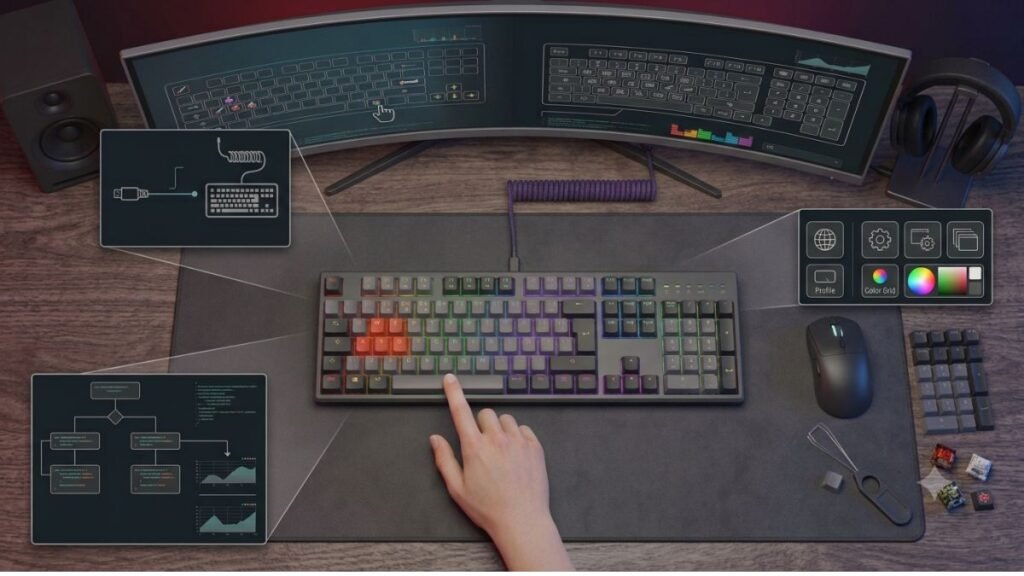
Step 1: Identify the exact symptom
Do not begin with “my keyboard is broken.”
Be specific:
- It does not turn on.
- It types the wrong letters.
- One key does not work.
- Several keys do not work.
- It disconnects randomly.
- It behaves differently in one game.
- The software does not detect it.
A precise symptom produces a much better troubleshooting path.
Step 2: Test outside the game
Open a simple text field and test the keyboard.
If the problem only happens inside one game, the game or its key bindings may be responsible.
Step 3: Check the physical connection
For wired keyboards, try another USB port and connect directly to the computer when possible.
For wireless keyboards, check power, receiver connection, pairing, and distance.
Step 4: Check Windows settings
Verify:
- Keyboard layout
- Accessibility settings
- Input language
- Unexpected shortcuts
Step 5: Check manufacturer software
Look for:
- Active profiles
- Key remapping
- Macros
- Game mode
- Firmware notifications
Step 6: Test another computer
If the problem follows the keyboard, the device becomes a stronger suspect.
If the problem stays with the original computer, investigate its software and configuration.
Step 7: Consider drivers or firmware
Only after the simpler possibilities have been checked should you move toward driver, firmware, or manufacturer-specific troubleshooting.
What Beginners Should Understand About Gaming Keyboard Problems
A gaming keyboard is not just a collection of physical switches.
Its behavior is the result of several components working together:
Keyboard hardware + connection + operating system + software + application
That’s why strange keyboard behavior doesn’t always point to faulty hardware. The cause might be as simple as the wrong Windows layout, a wireless receiver losing its connection, or a software profile changing what a key does.
Once you understand how these pieces work together, troubleshooting becomes much easier than trying random fixes until something works.
For readers who want a broader technical foundation, our guide to mechanical gaming keyboards explains how different keyboard technologies, layouts, and features fit together.
Final Checklist: Avoid These Gaming Keyboard Mistakes
Before replacing a gaming keyboard or performing a major reset, check the following:
- Confirm the exact symptom.
- Test the keyboard outside the game.
- Check the Windows keyboard layout.
- Check Accessibility keyboard settings.
- Try another USB port.
- Remove unnecessary USB hubs during testing.
- Check wireless battery or charging status.
- Check the wireless receiver when applicable.
- Review keyboard software profiles.
- Check key remapping and macros.
- Test the keyboard on another computer.
- Only then investigate drivers, firmware, or hardware failure.
You don’t need to troubleshoot everything at once. Work through the possibilities one at a time, starting with the simplest checks before moving on to more drastic fixes.
Conclusion
Gaming keyboard problems can be frustrating, especially when a simple setting or connection issue looks like a hardware failure. A keyboard that types the wrong letters may have a Windows layout issue. A keyboard that suddenly stops responding may have a connection or power problem.
A key behaving strangely may be affected by software, a profile, or an application rather than the physical switch.
Avoiding common gaming keyboard mistakes starts with a simple habit: diagnose before changing.
Check the connection, test outside the game, verify Windows settings, review keyboard software, and test the device on another computer before assuming the hardware has failed. That approach is faster, safer, and much more useful for beginners building confidence with PC gaming hardware.
For a broader understanding of keyboard technology, continue with the Smart Gadget Wave guide to mechanical gaming keyboards.
FAQ
What are the most common gaming keyboard mistakes beginners make?
The most common gaming keyboard mistakes include changing too many settings at once, ignoring Windows keyboard layouts, using unnecessary software changes, overlooking USB or wireless connection problems, and assuming every strange behavior is a hardware failure. Beginners should identify the exact symptom and test the simplest possible causes before changing drivers, firmware, or hardware.
Why is my gaming keyboard typing the wrong letters?
A gaming keyboard may type the wrong letters because Windows is using a different keyboard input layout from the physical keyboard. Check the language and keyboard layout settings before assuming the keyboard is defective. Windows also allows users to switch between installed keyboard layouts with the Windows key plus Space.
Why is my gaming keyboard not turning on?
If a gaming keyboard is not turning on, first check its USB connection, try another USB port, and connect it directly to the computer instead of through a hub. For wireless models, check the battery or charge level and confirm that the receiver or Bluetooth connection is active. If possible, test the keyboard on another computer.
Can a gaming keyboard driver cause keyboard problems?
A driver can contribute to keyboard problems, but it is not the only possible cause. USB connections, Windows settings, keyboard layouts, manufacturer software, firmware, and hardware can also produce similar symptoms. It is generally more efficient to check the simple connection and configuration issues before changing drivers.
Why does my mechanical keyboard feel like some keys are different?
Mechanical keyboard switches can have different characteristics, including linear, tactile, or clicky behavior and different resistance levels. A difference in feel does not automatically indicate a fault. If a key consistently fails to register, repeats unexpectedly, or behaves incorrectly across computers, hardware troubleshooting becomes more relevant.
Why does my wireless gaming keyboard keep disconnecting?
Wireless gaming keyboards can disconnect because of low battery power, receiver placement, USB port problems, pairing issues, or wireless interference. Microsoft recommends checking power, connecting the receiver directly to the computer, trying another USB port, reducing interference, and testing the device on another computer when troubleshooting wireless connection problems.
Should I reset my gaming keyboard when it stops working?
A reset should not normally be the first troubleshooting step. First identify whether the problem comes from the connection, Windows settings, keyboard software, or the application you are using. A reset can remove custom profiles, macros, and other configurations, so it is better used after simpler causes have been eliminated.