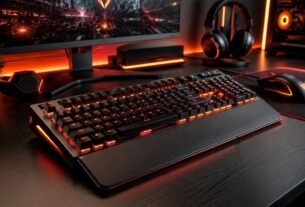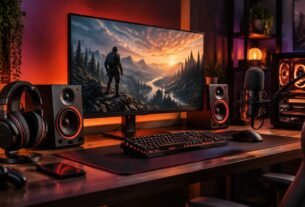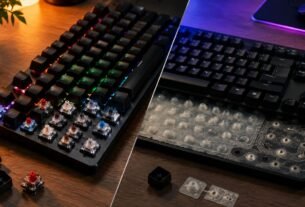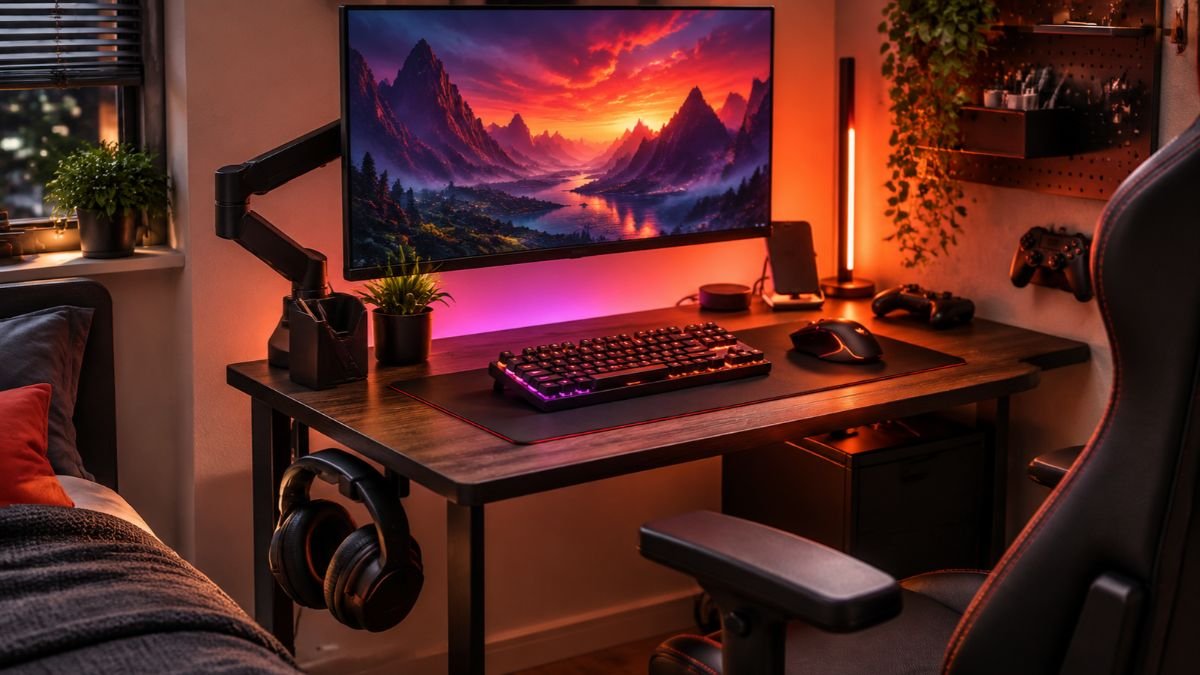
Gaming accessories small desk setups should improve comfort and functionality without taking over the available surface.
Compact keyboards, monitor arms, controlled cable routing, headset storage, and multipurpose accessories can preserve valuable mouse and keyboard space. The goal is not simply to use smaller gear, but to create a gaming setup where every accessory earns its place.
A small desk can support a capable gaming setup, but space disappears quickly once you add a monitor, keyboard, mouse, headset, charging cables, speakers, and other peripherals. The challenge is deciding which accessories deserve desk space and which should be moved above, below, or away from the main surface.
That distinction matters because a clean-looking desk is not automatically a comfortable one. Saving space should never mean forcing your keyboard, mouse, or monitor into awkward positions.
The OSHA computer workstation guidance explains that appropriate placement of workstation components and accessories can support more neutral body positions and improve comfort.
For a compact gaming setup, the better approach is to protect usable desk space: the area you actually need for comfortable controls and movement. That means looking beyond accessory size and considering placement, cable requirements, mounting options, and how often each device is used.
With those principles in mind, even a limited desk can become an organized and practical gaming space.
What Makes a Gaming Accessory Good for a Small Desk?
A good gaming accessory for a small desk does more than have compact dimensions. It should improve how you use the setup while taking up as little valuable surface area as reasonably possible.
This distinction is important. A tiny accessory that adds clutter, requires several cables, or interferes with mouse movement may be less useful than a slightly larger device that replaces two separate accessories.
When evaluating gaming accessories for small desk spaces, consider four things: footprint, placement, frequency of use, and whether the accessory can perform more than one useful function.
If you are still planning the overall layout, our gaming setup guide explains the essential components of a gaming station and how they work together.
Protect Your Usable Desk Space
The total dimensions of a desk do not tell you how much practical gaming space you actually have.
A monitor stand may occupy part of the surface. A full-size keyboard takes another section. Speakers, a microphone base, charging devices, and decorative items can further reduce the area available for mouse movement.
Think instead about usable desk space: the part of the surface that remains accessible for the equipment and movements you regularly need while gaming.
For example, placing a controller stand at the front of a small desk may save little space if you constantly have to move it to use your mouse. Mounting or relocating the same controller storage could make the setup considerably easier to use.
Use Vertical Space Before Filling the Surface
When horizontal space is limited, vertical space becomes valuable.
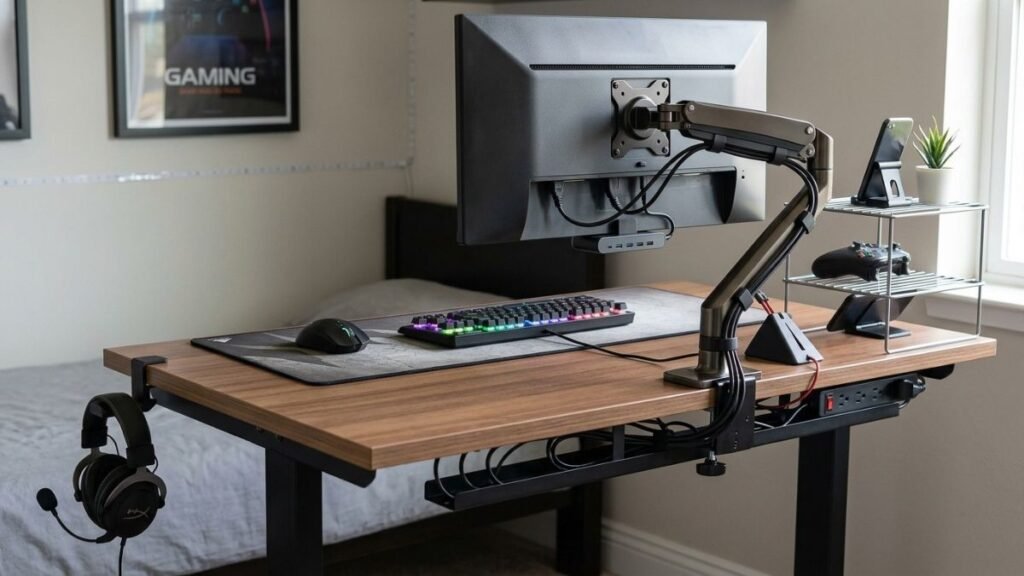
A monitor arm, under-desk headset hook, wall-mounted storage solution, or raised shelf can relocate equipment that would otherwise compete for surface area.
The principle is simple:
Space-saving gaming accessories are most effective when they remove objects from the active desk area rather than merely making those objects slightly smaller.
Many displays use standardized mounting interfaces. The VESA Flat Display Mounting Interface (FDMI) standard defines standardized mounting interfaces for compatible flat-panel displays and mounting equipment.
Compatibility still needs to be checked for the specific monitor and mount. A monitor arm is only useful as a space-saving solution when the display, mounting hardware, desk, and clamp or mounting method are suitable for one another.
Prioritize Accessories You Actually Use
Small desks leave less room for accessories that are rarely needed.
Consider a gamer who keeps a controller dock, large speaker system, microphone stand, headphone stand, decorative lighting, phone charger, and several collectibles around a single monitor. Each item may make sense independently, but together they can leave very little room for actual gameplay.
Start with the essentials:
- Monitor
- Keyboard
- Mouse and appropriate movement area
- Audio equipment you regularly use
Then add accessories according to how frequently they are needed.
This does not mean a small gaming desk has to look empty. It means decorative and secondary equipment should not interfere with the primary purpose of the setup.
Our guide to essential gaming desk accessories provides a broader look at the types of accessories that can add practical functionality to a gaming station.
Look for More Than a Small Footprint
Compact dimensions alone can be misleading.
A wireless device, for example, may remove a visible cable but still occupy exactly the same surface area as its wired equivalent. Likewise, a tiny USB hub can become inconvenient if several cables extend from it across the desk.
For each accessory, ask:
Where will it sit? What else does it require? How often will I use it? Does it free space elsewhere?
Those questions provide a much better test of whether an accessory belongs in a compact setup.
The best gaming accessories for a small desk are therefore not necessarily the smallest. They are the accessories that preserve the areas you use most while improving organization, comfort, or functionality.
Which Gaming Accessories Save the Most Desk Space?
The accessories that save the most space usually do one of three things: reduce the physical footprint of essential equipment, move equipment away from the main surface, or combine functions that would otherwise require multiple devices.
For a small gaming desk, that often makes compact keyboards, monitor arms, smart storage, controlled charging solutions, and carefully positioned audio accessories more useful than simply adding more gear.
Compact Gaming Keyboards
The keyboard is one of the largest peripherals that sits permanently in front of most gamers. Changing its form factor can therefore have an immediate effect on available desk space.
Full-size keyboards typically include the main typing area, function row, navigation keys, arrow keys, and number pad. Compact layouts remove or reorganize some of these sections.
Common options include:
| Keyboard Layout | Approximate Size | Main Space-Saving Change | Small-Desk Consideration |
|---|---|---|---|
| Full-size | 100% | None | Requires the most horizontal space |
| Tenkeyless (TKL) | ~80% | Removes number pad | Keeps function and navigation keys |
| 75% | ~75% | Compresses navigation area | Balances dedicated keys and footprint |
| 65% | ~65% | Removes function row | Smaller while usually retaining arrow keys |
| 60% | ~60% | Removes several dedicated key sections | Maximizes mouse-side space but relies more on shortcuts |
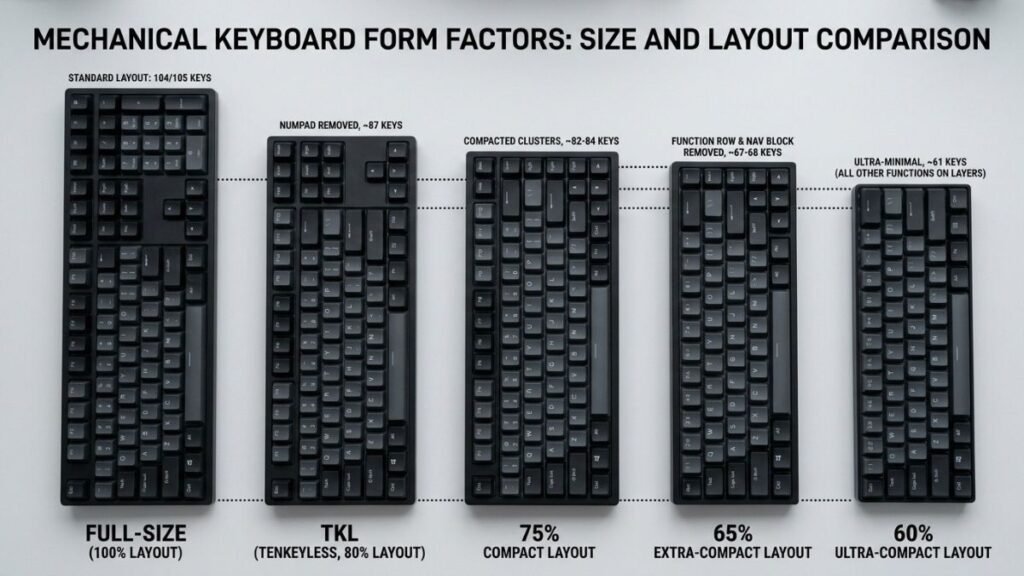
These percentages describe general form-factor categories rather than universal physical dimensions. Two keyboards using the same layout can still have different widths because of bezels, key spacing, controls, or other design choices.
A 60% keyboard form factor, for example, removes several dedicated sections found on a traditional full-size keyboard. Razer’s official explanation of its [60% keyboard form factor] explains how functions can remain accessible through secondary key commands even when dedicated keys are removed.
The trade-off is straightforward: a smaller keyboard creates more room, but it may also require more key combinations.
For someone who frequently uses a number pad, dedicated function keys, or navigation controls, the smallest layout is not automatically the most practical choice. A TKL or 75% board may provide a better balance.
A compact keyboard saves useful gaming space only when its reduced layout still supports the keys and functions you regularly use.
Monitor Arms
A traditional monitor stand can consume a surprisingly useful portion of a shallow desk, particularly when its feet extend forward or sideways.
A compatible monitor arm can move much of that supporting structure away from the main surface. Depending on the arm and desk, the area beneath the display may then become available for temporary storage or simply remain clear.
This makes monitor mounting especially useful when the goal is to gain functional space, rather than just make the setup look cleaner.
However, check three things before considering an arm:
- Monitor mounting compatibility
- Monitor weight and size limits of the arm
- Whether the desk can safely accommodate the mounting method
The VESA mounting standard provides standardized mounting interfaces for compatible displays, but VESA compatibility alone does not mean every monitor arm will work with every monitor or desk.
Under-Desk Headset Storage
A headset stand can look organized, but it still occupies surface area.
On a large gaming desk, that may not matter. On a compact desk, moving headset storage below the surface can be more efficient.
An under-desk hook or suitable side-mounted holder keeps the headset accessible while leaving the main surface available for equipment that needs to be there.
Placement matters, though. Storage should not interfere with your legs, chair movement, drawers, or nearby cables.
This illustrates an important small-desk principle: storage does not always need to be on the desk to remain convenient.
Compact Charging and USB Access
Phones, controllers, wireless mice, headsets, and other devices can create a collection of individual charging cables.
A carefully positioned charging point or USB hub can centralize some connections, but only when it actually improves cable routing.
Placing a hub in the middle of the desk and connecting several devices from different directions may create more clutter rather than less.
For a compact setup, consider where cables need to travel before deciding where the hub or charging station should sit. Rear-edge, under-desk, or side placement can sometimes keep connections away from the primary keyboard and mouse area.
Wireless Peripherals
Wireless accessories can reduce the number of cables crossing the visible surface, which may make a small desk easier to organize.
But wireless does not automatically mean space-saving.
A wireless keyboard still occupies physical desk space. Wireless devices may also require receivers, charging cables, docks, or occasional wired charging.
The real advantage is greater flexibility in placement and cable management.
If you are considering removing keyboard cables from the setup, our explanation of wireless gaming keyboards covers their benefits, limitations, and connectivity considerations in greater detail.
For a small gaming station, wireless equipment is most useful when cable removal solves an actual organization problem, rather than simply changing how the peripheral connects.
Multipurpose Accessories
Limited space makes single-purpose accessories harder to justify.
A device or piece of furniture that performs several useful functions can reduce the number of separate objects around the setup. Examples might include a monitor riser with storage underneath or a desk-mounted accessory system that organizes several frequently used items.
The key is not to chase multifunctionality for its own sake.
An accessory with six functions is not efficient if you only need one of them. For gaming accessories small desk planning, the better question is whether one well-positioned accessory can eliminate the need for multiple items that would otherwise occupy valuable space.
How Should You Organize Gaming Accessories on a Small Desk?
Good organization is not about making every accessory disappear. It is about keeping the equipment you use most within easy reach while moving cables, storage, and less frequently used devices away from the active gaming area.
On a small desk, organization should begin with the keyboard, mouse, and monitor. Everything else should be positioned around those essentials rather than forcing the primary peripherals into whatever space remains.
Start With the Keyboard and Mouse Area
Before adding accessories, decide how much room you actually need for your keyboard and mouse.
Mouse space is especially easy to underestimate. A low-sensitivity player may use broad arm movements, while someone using higher sensitivity may need considerably less physical movement.
Avoid filling unused-looking space beside the mouse before you know how much of that area you naturally use while gaming.
The keyboard position matters as well. A compact keyboard may create additional mouse room, but pushing the keyboard into an uncomfortable position simply to accommodate another accessory defeats the purpose.
A practical layout should allow both input devices to remain accessible without constantly moving other equipment.
Keep Frequently Used Accessories Within Reach
Accessories used during nearly every gaming session deserve the most convenient locations.
A controller used once a week does not need the same priority as a mouse, keyboard, or audio control used every day. Similarly, charging equipment does not necessarily need to occupy the center of the desk simply because several devices connect to it.
One useful way to think about a compact desk is to divide it into three zones:
| Zone | Best Use | Examples |
|---|---|---|
| Primary zone | Constant interaction | Keyboard, mouse |
| Secondary zone | Regular but occasional access | Controller, audio controls, phone |
| Storage zone | Items not needed during active play | Spare cables, adapters, less-used peripherals |
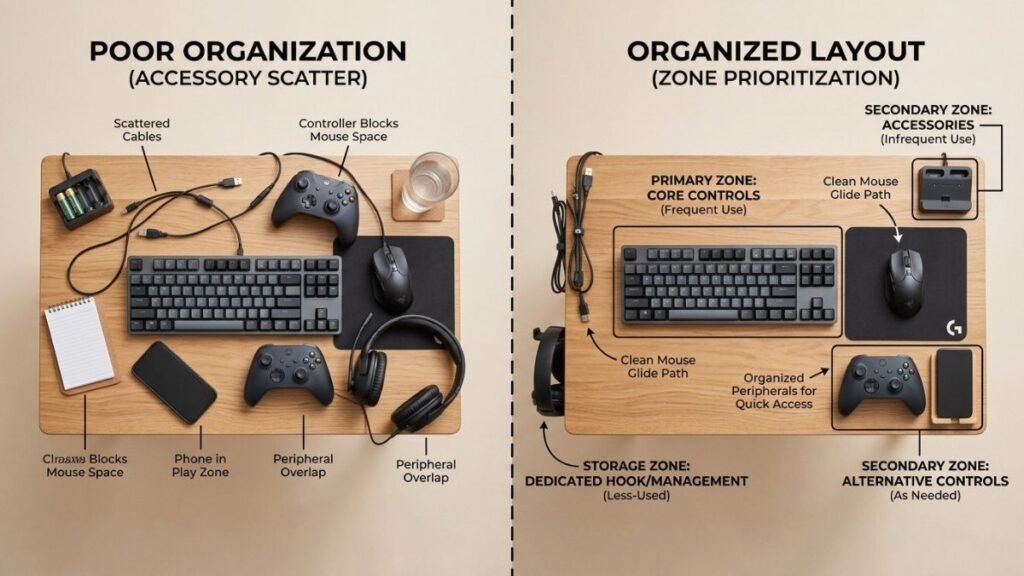
This simple hierarchy helps prevent every accessory from competing for the same premium surface area.
Move Cable Clutter Away From the Active Surface
Cables can make a compact setup feel crowded even when the devices themselves are relatively small.
Start by identifying cables that remain permanently connected. Monitor power, display cables, desktop power, keyboard connections, and other fixed wiring can often be routed toward the rear of the setup rather than crossing the working surface.
Then separate those from cables that need frequent access, such as phone or controller charging leads.
A structured gaming cable management approach can help move unnecessary wiring away from the main play area and make future changes easier.
Avoid bundling every cable together without considering its function. A cable that needs to be unplugged regularly should remain accessible, while permanent connections can usually be routed more securely.
Use the Area Under the Desk Carefully
The space beneath a small desk is useful, but it is not unlimited.
Cable trays, power-strip mounts, headset hooks, and similar accessories can move equipment off the surface. However, placing too many items underneath can create a new problem by reducing legroom or interfering with chair movement.
Before mounting anything, sit at the desk and identify where your knees, legs, and chair naturally move.
Then use the remaining areas for storage or cable routing.
This is especially important with shallow desks, where mounting hardware near the front edge may be more noticeable during everyday use.
Avoid Turning Organization Into More Clutter
There is an easy trap when building a compact gaming station: buying several organizers to organize other organizers.
A headphone stand, controller rack, cable box, USB hub, charging dock, desk shelf, drawer system, and accessory tray may each look useful individually. Together, they can consume much of the space they were supposed to save.
Before adding an organizer, ask:
Does this remove clutter from the active area, or does it simply give the clutter a new container?
For gaming accessories small desk setups, fewer well-positioned organizational tools are often more effective than covering the desk with dedicated holders.
The objective is not a perfectly empty surface. It is a layout where your essential controls remain comfortable to use and secondary accessories do not constantly need to be moved.
Which Accessories Can Make a Small Gaming Desk Feel Cluttered?
Not every useful gaming accessory works well on a compact desk. Some devices require more surface area than expected, while others introduce extra stands, cables, adapters, or charging equipment.
This does not mean these accessories are bad. It means their value depends on the available space and how often you actually use them.
Large Headset Stands
A dedicated headset stand can provide a convenient place to store headphones, but its base occupies permanent desk space even when the headset is being used.
That trade-off is easy to overlook.
On a large desk, the footprint may be insignificant. On a small gaming desk, the same area could provide room for mouse movement, a controller, or temporary device placement.
An under-desk hook or side-mounted storage solution may make more sense when surface area is the main limitation.
Oversized Mouse Pads
Large desk mats can create a consistent surface for the keyboard and mouse while also changing the visual appearance of a setup.
However, bigger is not automatically better.
A mat that extends underneath every device can complicate cleaning and may overlap monitor stands, charging stations, or other accessories on a particularly shallow desk.
More importantly, mouse space should be based on actual movement requirements rather than the assumption that every gaming setup needs an oversized desk mat.
Measure the usable surface first. Then choose a mouse pad size that provides sufficient movement without interfering with the rest of the setup.
Large Speaker Systems
Separate desktop speakers can take valuable space on both sides of a monitor. Systems with additional control units or subwoofers may require even more careful placement.
For gamers who primarily use a headset, dedicating permanent desk space to large speakers may provide relatively little everyday value.
That does not mean speakers should automatically be removed. The important question is how frequently each audio device is used.
If both speakers and a headset are important to your setup, consider whether the speakers can be positioned on a shelf or another stable surface without compromising their intended use.
Multiple Charging Docks
Charging stations can improve organization when they replace several loose cables. The opposite happens when every wireless device receives its own dock.
A mouse dock, controller charger, phone stand, smartwatch charger, and headset charging base can quickly create an entire row of equipment.
Before adding another charging accessory, look at the setup as a system.
Could several devices share a carefully positioned charging area? Can equipment be charged when the desk is not being used for gaming? Does a dock eliminate cable clutter, or does it simply add another permanent object?
The answers determine whether the accessory genuinely saves space.
Decorative Accessories That Compete With Functional Space
Figures, lighting, plants, collectibles, and other decorative elements can make a gaming station feel personal. A compact desk does not need to be purely functional.
The problem begins when decoration occupies areas required for controls or comfortable movement.
Instead of eliminating personality, move decorative elements toward areas that are less valuable for gameplay. Wall shelves, monitor-top areas where appropriate, nearby shelving, or the rear corners of a sufficiently deep desk can provide alternatives.
Our collection of gaming setup ideas explores different ways to approach the overall gaming space while balancing practical requirements with the appearance of the setup.
Accessories With Too Many Extra Cables
A small device can still create a large organizational footprint.
RGB controllers, USB hubs, charging systems, external audio devices, and other accessories may require power, data connections, or additional adapters. Looking only at the dimensions of the device can therefore give an incomplete picture.
A better measurement is the accessory’s total setup footprint:
Total setup footprint includes the physical device plus the cables, adapters, stands, receivers, and clearance required to use it comfortably.
This is especially useful when comparing gaming accessories for small desk spaces. An accessory that appears compact in isolation may require considerably more room once everything needed to operate it is connected.
Avoid Adding Accessories Just to Fill Empty Space
Empty desk space is not wasted space.
It gives you room to move the mouse, place a controller temporarily, connect another device, clean the desk, or change the setup later.
A compact gaming station does not become better simply because every available area contains an accessory.
For small desks, leaving some intentional open space is itself part of good setup design.
How Can You Build a Comfortable Gaming Setup in a Small Space?
A comfortable small gaming room setup comes from balancing space efficiency with everyday usability. The goal is not to fit the maximum number of accessories onto the desk. It is to give your essential equipment enough room while placing secondary devices where they interfere as little as possible.
A compact setup can still support a monitor, keyboard, mouse, headset, controller, charging equipment, and personal touches. The difference is that every item needs a deliberate location.
Measure the Desk Before Choosing Accessories
Start with the actual dimensions of the usable surface.
Measure the desk’s width and depth, then consider how much of that space will be occupied by the monitor or monitor stand. This gives you a more realistic picture of what remains for input devices and accessories.
Do not rely only on product labels such as “compact.” Actual dimensions matter more.
For example, two keyboards may both be marketed as compact while having noticeably different widths because of their bezels, control knobs, spacing, or additional keys.
The same principle applies to monitor stands, speakers, charging docks, and desk organizers.
Build Around the Essential Components First
Place the equipment required for normal gaming before adding secondary accessories.
A practical order is:
- Position the monitor.
- Establish a comfortable keyboard location.
- Reserve enough mouse movement area.
- Position the audio equipment you regularly use.
- Route essential cables.
- Add storage, charging devices, and secondary accessories afterward.
This approach prevents optional equipment from determining where essential controls have to go.
It also makes it easier to identify whether you genuinely have room for another accessory.
Choose Accessory Placement Based on Frequency of Use
The more frequently you interact with something, the easier it should be to reach.
Your mouse and keyboard normally belong in the primary area. A controller used regularly might stay nearby but does not necessarily need to sit directly in front of you. A spare cable, adapter, or rarely used peripheral can usually be stored farther away.
This creates a simple rule for a compact setup:
High-use equipment gets prime space; low-use equipment should not permanently occupy prime space.
This principle can be more effective than buying smaller versions of everything.
Keep Comfort Ahead of Appearance
Compact gaming setups often look impressive when every component is perfectly aligned, but a photograph and an everyday gaming environment have different requirements.
You need room to move.
If creating a symmetrical setup forces the mouse into a narrow area or pushes the keyboard too far to one side, appearance has started to compromise functionality.
The same applies to monitor positioning. Saving a few inches of desk surface is not useful if the resulting display position is uncomfortable for regular use.
Design the setup around how you actually sit and play, then refine its appearance around that functional layout.
Leave Room for the Setup to Change
Gaming setups rarely remain identical forever.
You may replace a keyboard, add a second controller, change the monitor, switch audio equipment, or temporarily connect another device.
Leaving some open surface area gives the setup flexibility.
This is another reason not to fill every empty corner with organizers or decorative accessories. Open space can accommodate future equipment without requiring a complete redesign.
For broader layout inspiration, our gaming setup ideas guide explores different approaches to building a gaming space around available room and priorities.
Think of the Desk as One System
The most effective gaming accessories small desk strategy is not choosing each item independently. Consider how all of the components interact.
A complete RGB gaming setup follows the same approach by combining lighting, accessories, and device placement into one balanced gaming environment.
A compact keyboard can create more mouse room. Moving the headset below the desk can create storage space. Better cable routing can make the rear of the surface usable again. A compatible monitor arm may reduce the footprint of a large desktop stand.
Each improvement can affect another part of the setup.
That is why a well-designed compact gaming station may feel more spacious than a larger desk filled with poorly positioned equipment.
The goal is not maximum accessory density. It is maximum usable space.
Final Thoughts
The best gaming accessories for small desk spaces are not simply miniature versions of standard gaming gear. They are accessories that protect usable surface area, improve organization, and support the way you actually play.
Compact keyboards can create additional mouse room. Compatible monitor arms can reduce the surface footprint of traditional stands.
Under-desk storage can move headsets and other equipment away from the active area, while thoughtful cable management can prevent wires and charging equipment from taking over the setup.
The most important principle is to give priority to function. Measure the available space, position essential components first, and add secondary accessories only when they provide a clear benefit.
A small gaming desk does not need to feel restrictive. When accessories are selected as parts of one connected system, even a compact setup can remain comfortable, organized, personal, and flexible enough to change over time.
If you are improving more than just the desk itself, explore our complete gaming setup guide to understand how the major components of a gaming station work together.
Frequently Asked Questions
What gaming accessories for small desk spaces are the most useful?
The most useful gaming accessories for small desk spaces are those that preserve the primary keyboard and mouse area. Compact keyboards, compatible monitor arms, under-desk headset storage, cable-management accessories, and well-positioned charging solutions can all help. The best choices depend on your desk dimensions, gaming habits, and which devices you use most frequently.
Do gaming accessories for small desk setups need to be wireless?
No. Gaming accessories for small desk setups do not need to be wireless. Wireless peripherals can reduce visible cable clutter and provide more placement flexibility, but they do not necessarily occupy less physical space. A well-routed wired device may work just as effectively on a compact desk, especially when its cable can be kept away from the active gaming area.
Can a compact keyboard create more space on a small gaming desk?
Yes. A compact keyboard can free horizontal space that can be used for mouse movement or other essential equipment. TKL, 75%, 65%, and 60% layouts progressively reduce or reorganize sections found on full-size keyboards. However, smaller layouts may require shortcuts for missing dedicated keys, so the most compact option is not automatically the most practical for every user.
Are monitor arms useful gaming accessories for small desk spaces?
A monitor arm can be useful when a compatible monitor’s original stand occupies valuable desk surface. Moving the monitor support away from the main surface can create additional usable space underneath and around the display. Before using one, check the monitor’s mounting interface, the arm’s supported size and weight, and whether the desk can safely accommodate the mounting method.
How do I prevent gaming accessories from cluttering a small desk?
Start with your monitor, keyboard, and mouse, then add accessories according to how frequently you use them. Move suitable storage and permanent cable routing away from the active surface, and avoid adding a dedicated stand or dock for every device. Good gaming cable management can also keep wires from consuming otherwise usable areas.
Should I use a large mouse pad with gaming accessories on a small desk?
A large mouse pad can work on a small desk if its dimensions fit the available surface and support the mouse movement you actually need. Measure the usable area before choosing one. An oversized desk mat is unnecessary if it overlaps other equipment or occupies space without providing a practical benefit.
How can I make gaming accessories on a small desk look organized?
Keep frequently used peripherals in the primary area and relocate secondary equipment to the rear, sides, underneath the desk, or suitable nearby storage. Group cables according to how often they need to be accessed and leave some surface intentionally open. A compact setup usually looks more organized when every accessory has a clear purpose rather than when every empty area is filled.